Welcome to DriveSync
Automate Folder Creation & File Sync Between monday.com and Google Drive
Book a Personalized Demo
Discover how DriveSync can transform your team's productivity and organization.
Book a demo to see it in action and explore its full capabilities tailored to your needs.
How to use full video guide
Folder Creation
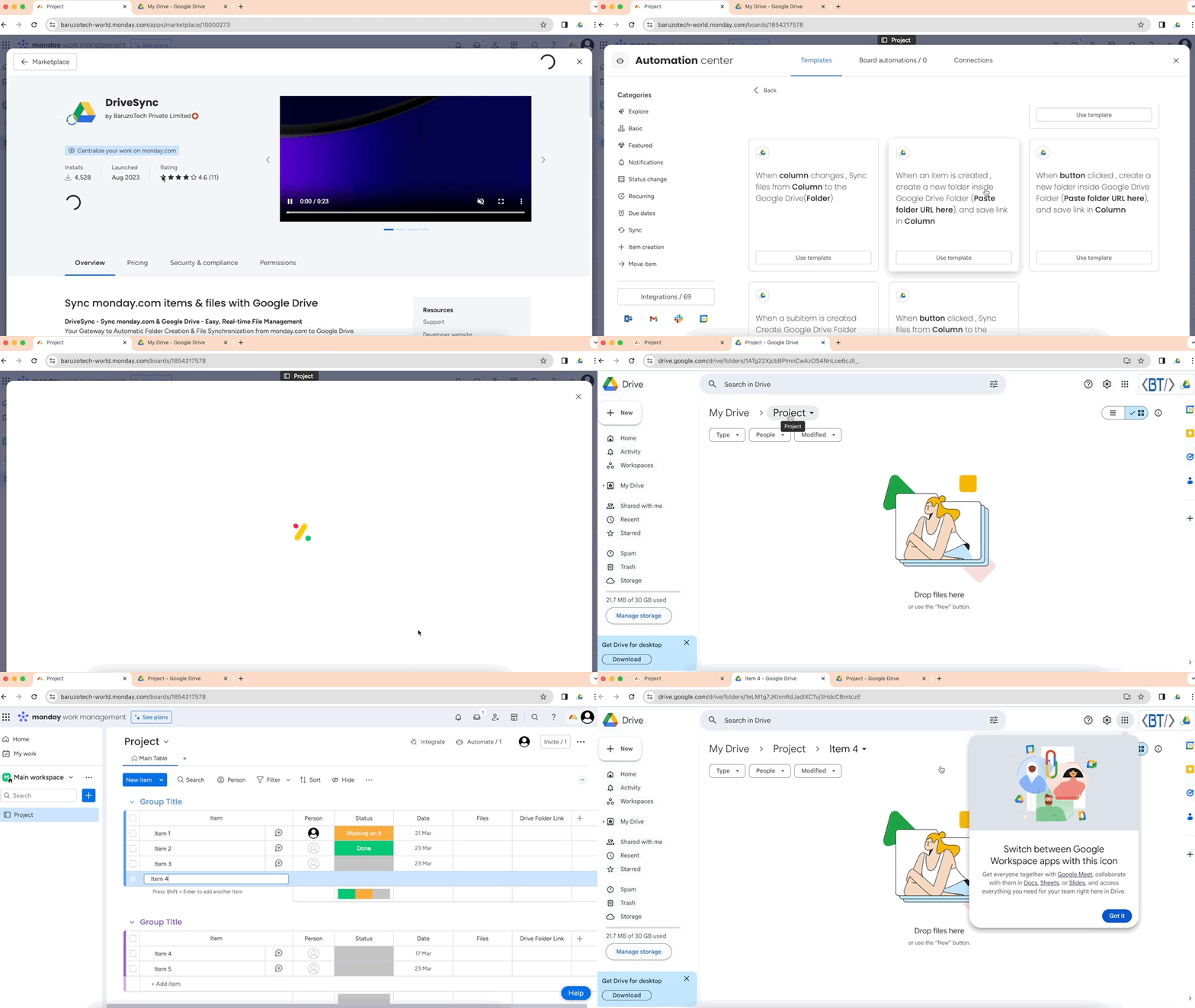
- Install the app in the relevant board.
- Go to integrate section, search and select “DriveSync”.
- Choose the “When an item is created, create a new folder inside” or “When an item is created, create a new folder in each” or “When button clicked, create a new folder inside” recipe.
- Authorise monday.com and Google Drive.
Configure the recipe
- Navigate to Google Drive or a Shared Drive.
- Access the specific folder where new folders will be created.
- Copy the URL of this folder from browser.
- Paste the copied URL into the “Paste folder URL here” field in the recipe.
- Choose the Column to store the link of the newly created folder for the Link field.
Note:- steps a to d is only applicable in some recipes.
- Create a new item/press the button and DriveSync will create a folder for you.
File Syncing
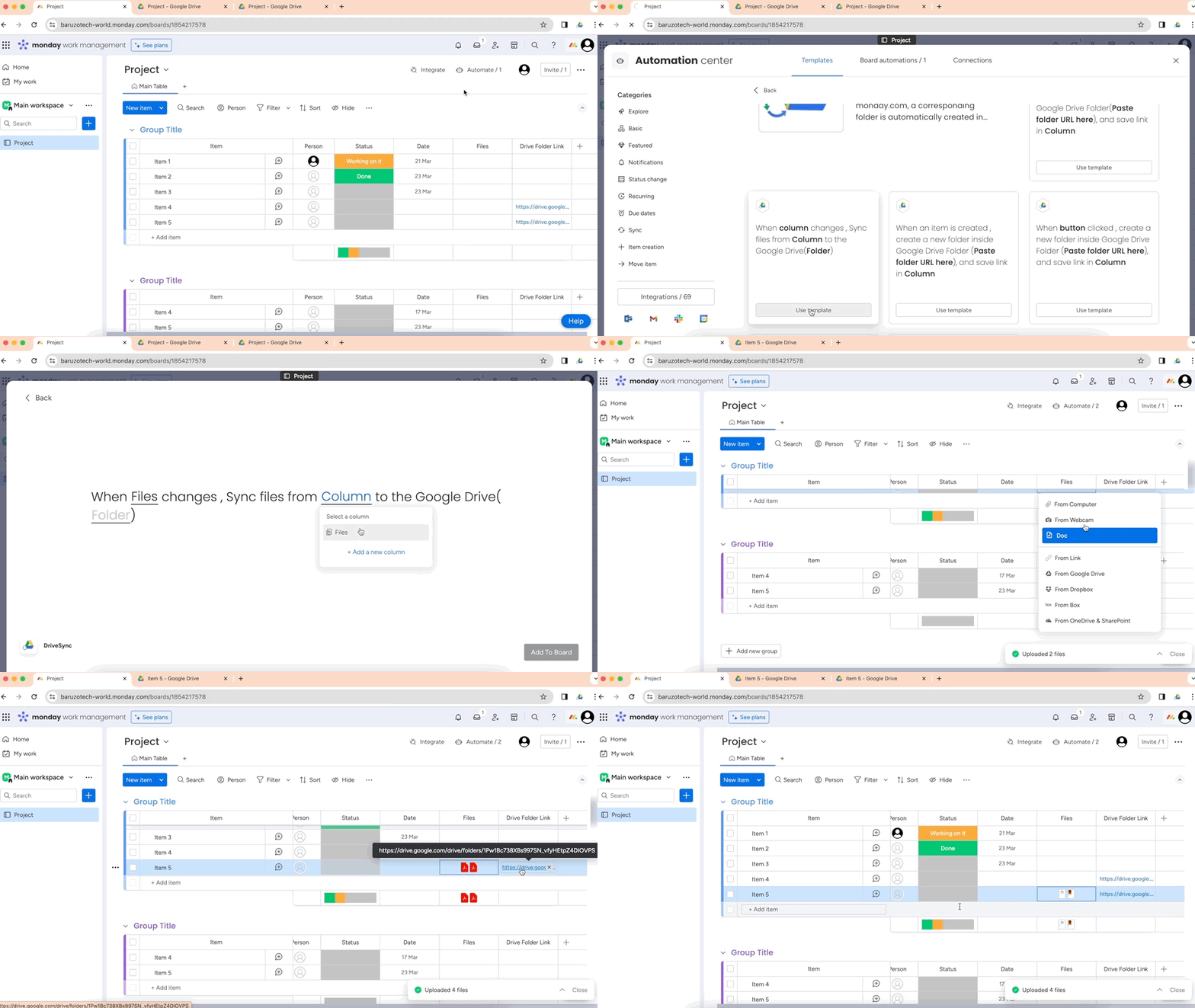
- Install the app in the relevant board.
- Go to integrate section, search and select “DriveSync”.
- Choose the “When column changes, Sync files from” or "When button clicked, sync files from" recipe.
- Authorise monday.com and DriveSync.
Configure the recipe
- column field: Select the column (triggers automation when column changes)
- Column field: Select the column from which files will be synced.
- Folder field: Select the column with the folder link.
- Update the column and DriveSync will sync the files from monday.com to Google Drive.